

Label automatically with a text prompt
Auto Labeling finds objects from a description in words: write what to look for, say which tag it gets, and a general-purpose AI model draws the labels. No examples are needed, so it is the quickest start for a new dataset of common objects. In this guide it boxes the biscuits of each pack.
What you will learn
- How to choose a model for Auto Labeling
- How to write prompts and link each one to a tag
- How to filter the proposals by confidence and keep them
- How to let it go through the images one after another
Before you start
You need a dataset of any type except classification, with images and at least one tag. Each run spends the project's tokens.
1. Open Auto Labeling
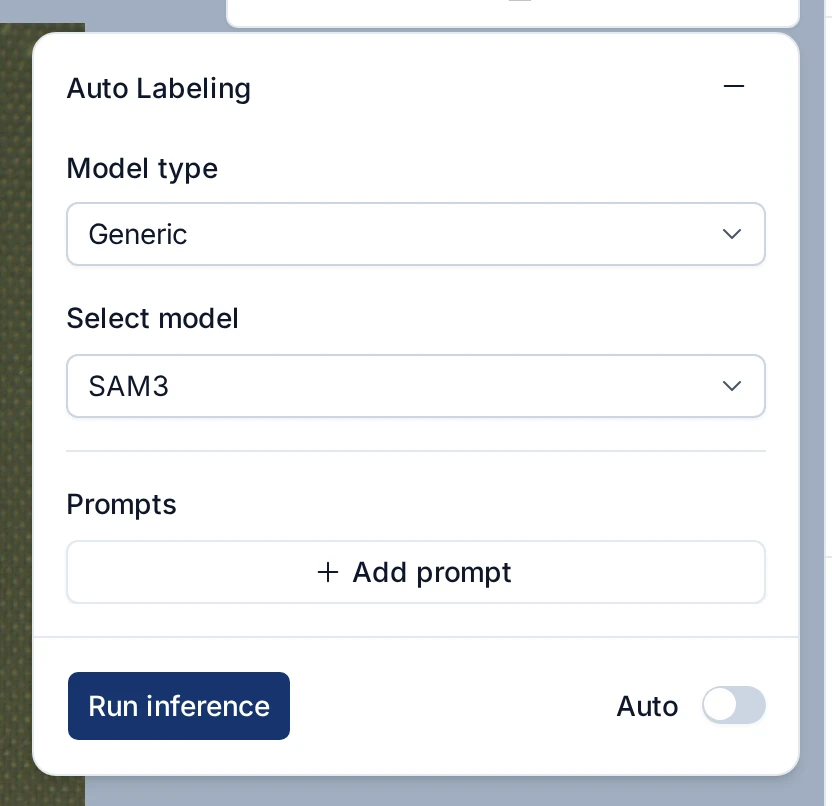
Open an image and choose «Auto Labeling», the sparkles in the toolbar. «Model type» offers «Generic» models, which know common objects without any training, here SAM3, and «Fine-Tuned» ones, trained on your own data as a labeling assistant.
2. Write a prompt
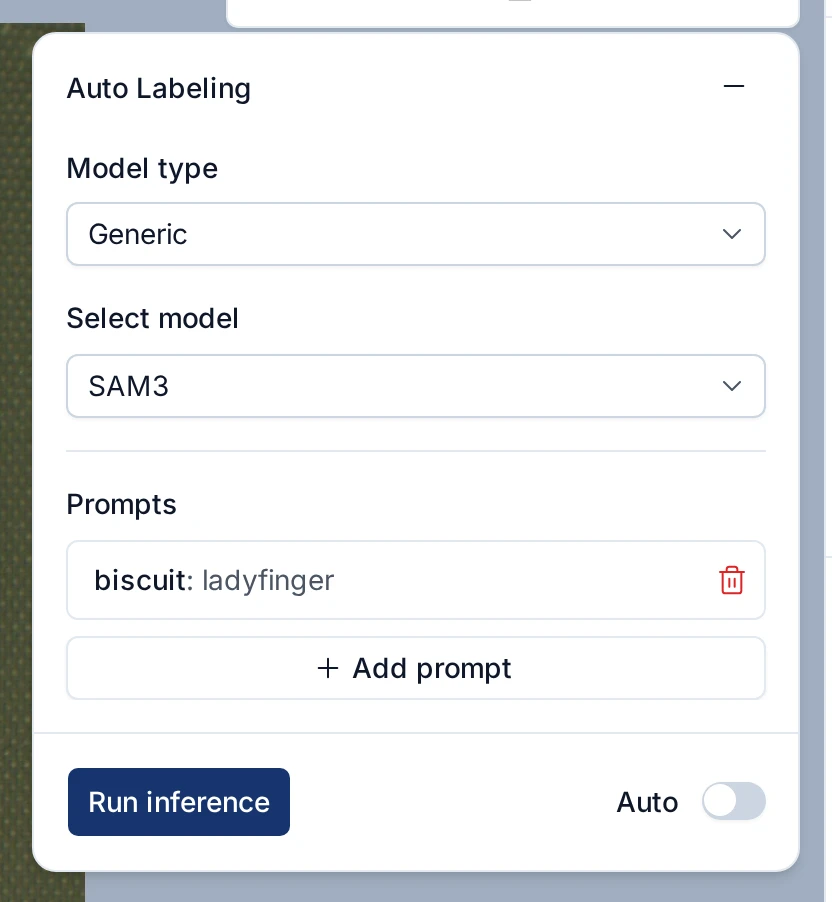
Click «Add prompt». Choose the tag the findings get: the prompt starts with its name. Describe the object in English, as precisely as you can: here «biscuit» finds the biscuits with little confidence, while «ladyfinger», the name of this kind of biscuit, finds them clearly. Click «Apply». Prompts are saved with the dataset, for everyone who labels it; add one per tag, or several for one tag.
3. Run it
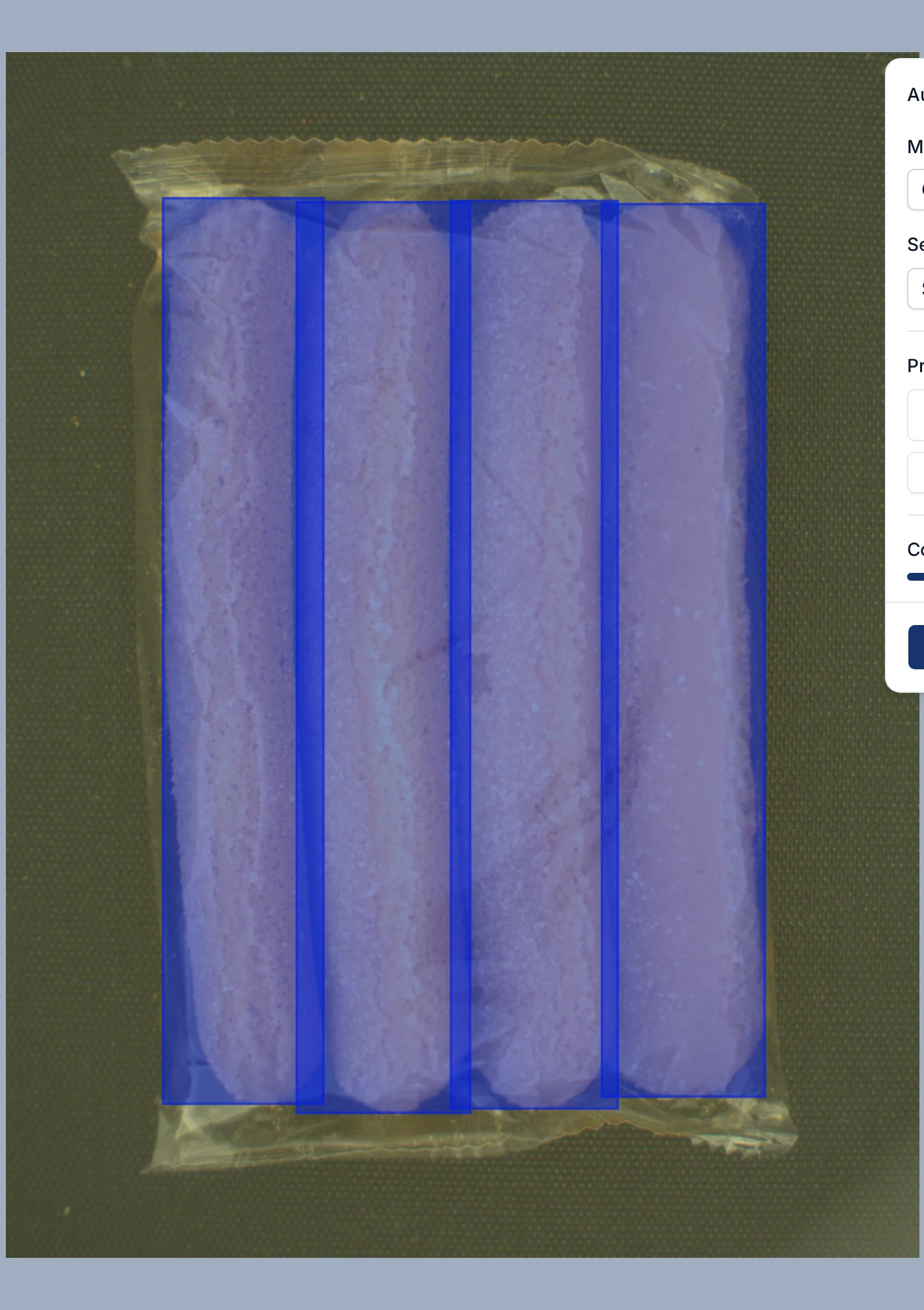
Click «Run inference». The first time, the model starts in the cloud, which takes a moment; then it proposes a box for each object it finds.
4. Keep the proposals
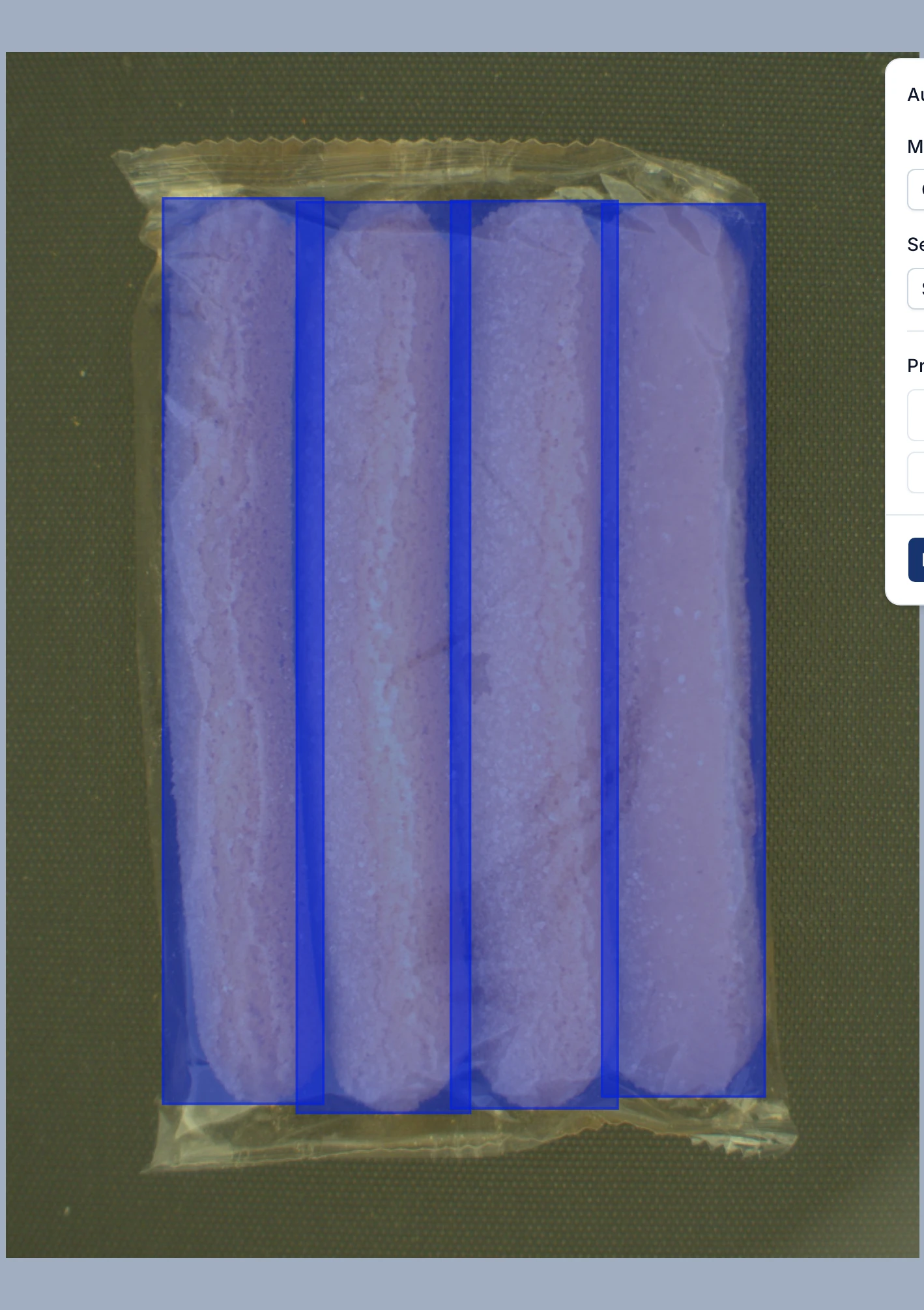
«Confidence» hides the proposals the model is less sure about; moving it does not run the model again. Click «Apply» to keep the ones on screen as labels. Proposals you have not applied are lost when you go to another image.
5. Let it go through the images
Go to the next image and turn on «Auto»: set the confidence and click «Start Auto». It labels the image on screen, keeps what it finds without asking, and goes on with the next ones. Turn «Auto» off to stop it, and check the images afterwards.
Choosing the model
- Generic. SAM3 and the Florence-2 models know everyday objects without training. SAM3 gives a confidence for each proposal; Florence-2 does not. In segmentation and anomaly detection datasets they draw masks instead of boxes.
- Fine-Tuned. Models trained as a labeling assistant on your own images (in «Train a new model» → «Labeling assistant»), for objects that a general model does not know.
- Generic API. In object detection, oriented boxes and text recognition datasets, a large language model reads all the prompts at once. The image goes to an external provider. With it, «Reference images» can show the model up to three labeled examples.
- Text recognition. In text recognition datasets the models are PaddleOCR, which read the text of the whole image or of the boxes you draw («ROI»).
Good to know
- Cost. Each prompt and each image is a call to the model, which spends the project's tokens. Fewer, clearer prompts cost less.
- Repeated boxes. A proposal that falls on a box of the same tag already in the image is skipped.
Next steps
Recorded on Rosepetal release 1.8.15.